
Setting up tickets
A ticket panel is the message with the button members press to open a ticket. You decide how it looks, who handles its tickets, and what happens when somebody presses it.
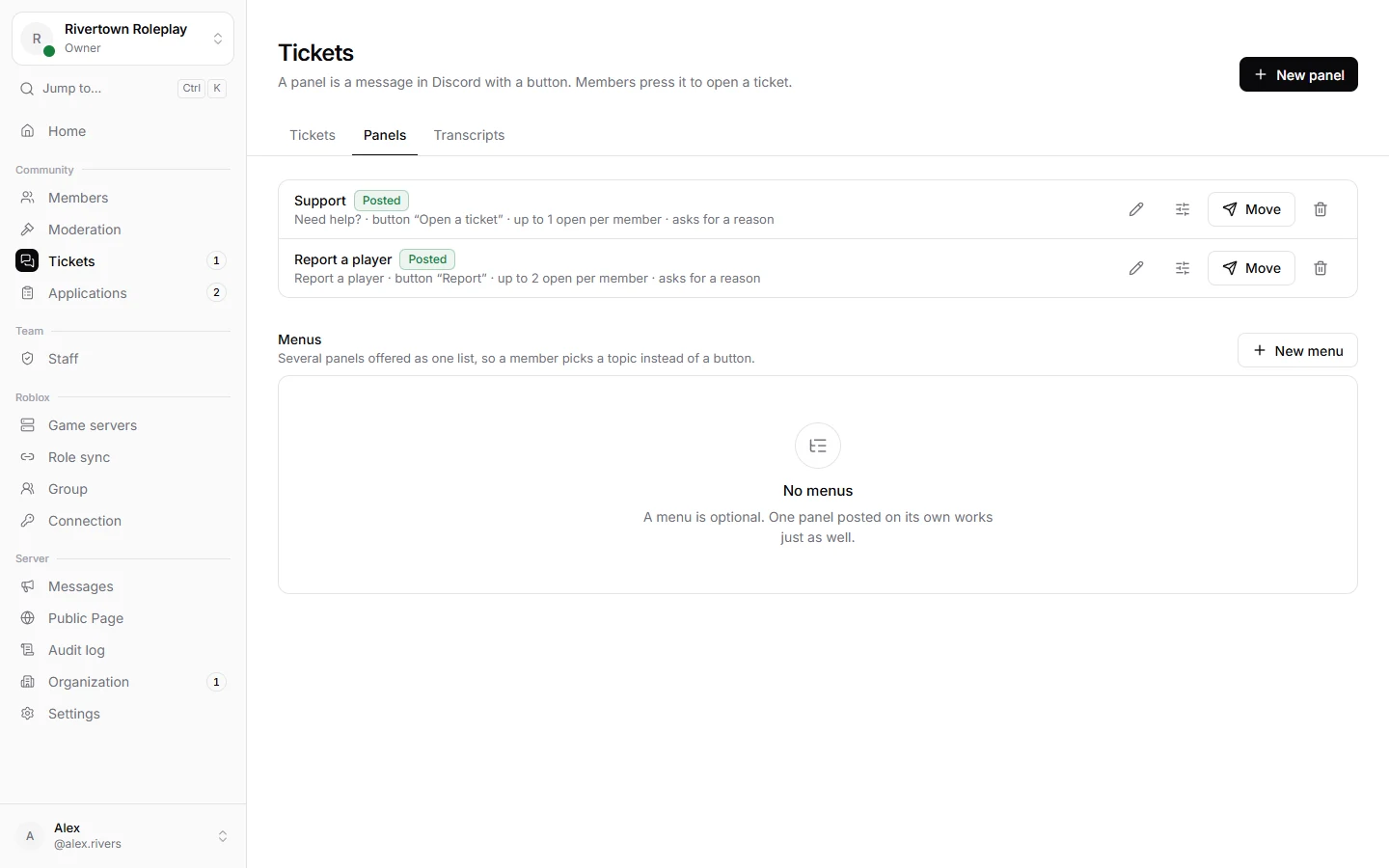
Plan your panels
Make one panel per kind of ticket that goes to different people. For example: Support for your helpers, Reports for your moderators, Management for your head of staff. Each panel has its own staff roles, category and first message.
Making a panel
- Open Tickets → Panels and add a panel.
- Write the Title, the Description and the Button text, and choose a Button color.
- Fill in what happens when somebody presses the button (below).
- Choose a channel and post it. When you change the panel later, update the posted message from the same page.
The settings
| Setting | What it does |
|---|---|
| Each ticket opens as | A channel of its own, or a private thread in one channel. Changing it only affects new tickets. |
| Channel for ticket threads | For threads: the text channel they are made in. Members must be able to see it. |
| Category for ticket channels | For channels: the Discord category new ticket channels are made in. Give your staff access to it. |
| Channel name / Thread name | How tickets are named, for example ticket-{number}. |
| Roles that see these tickets | The staff roles that can see and answer them. Nobody else sees the ticket, apart from the member and anybody added. |
| First message in the ticket | What the bot says when the ticket opens: what to include, how long an answer takes. |
| Members must give a reason | Asks what it is about before the ticket opens. Staff see it at once. |
| Open tickets per member | How many tickets one person may have open at once, to stop spam. |
| Close quiet tickets | Closes a ticket by itself after that many hours without a message. |
| Delete closed ticket channels | Removes the channel or thread that many hours after it was closed. The ticket stays in the dashboard. |
| Save a transcript when closed | Keeps a copy of the conversation in the dashboard. |
Tickets as threads
A panel can open each ticket as a private thread instead of a channel. Your server stays tidy, and Discord’s limit of fifty channels in a category does not apply. A private thread holds only people, never roles, so Technified adds the member and brings in the members of the staff roles without pinging them.
- Make a text channel for tickets, or use the one the panel is posted in. Members must be able to see it, but they do not need to write in it.
- Give Technified Create Private Threads, Manage Threads, Send Messages in Threads and Mention @everyone, @here and All Roles in that channel. The last one is what lets it bring in staff roles that cannot be mentioned.
- In the panel, set Each ticket opens as to A private thread and choose the Channel for ticket threads.
Good to know
/ticket add.Menus
Several panels in one channel get cluttered. A menu is one message with a list: the member picks Support, Report or Management, and the ticket opens with that panel’s settings. Make your panels first, then put them in a menu under Tickets → Panels.
Tip
Still stuck? Get help from the Technified team.