
Messages
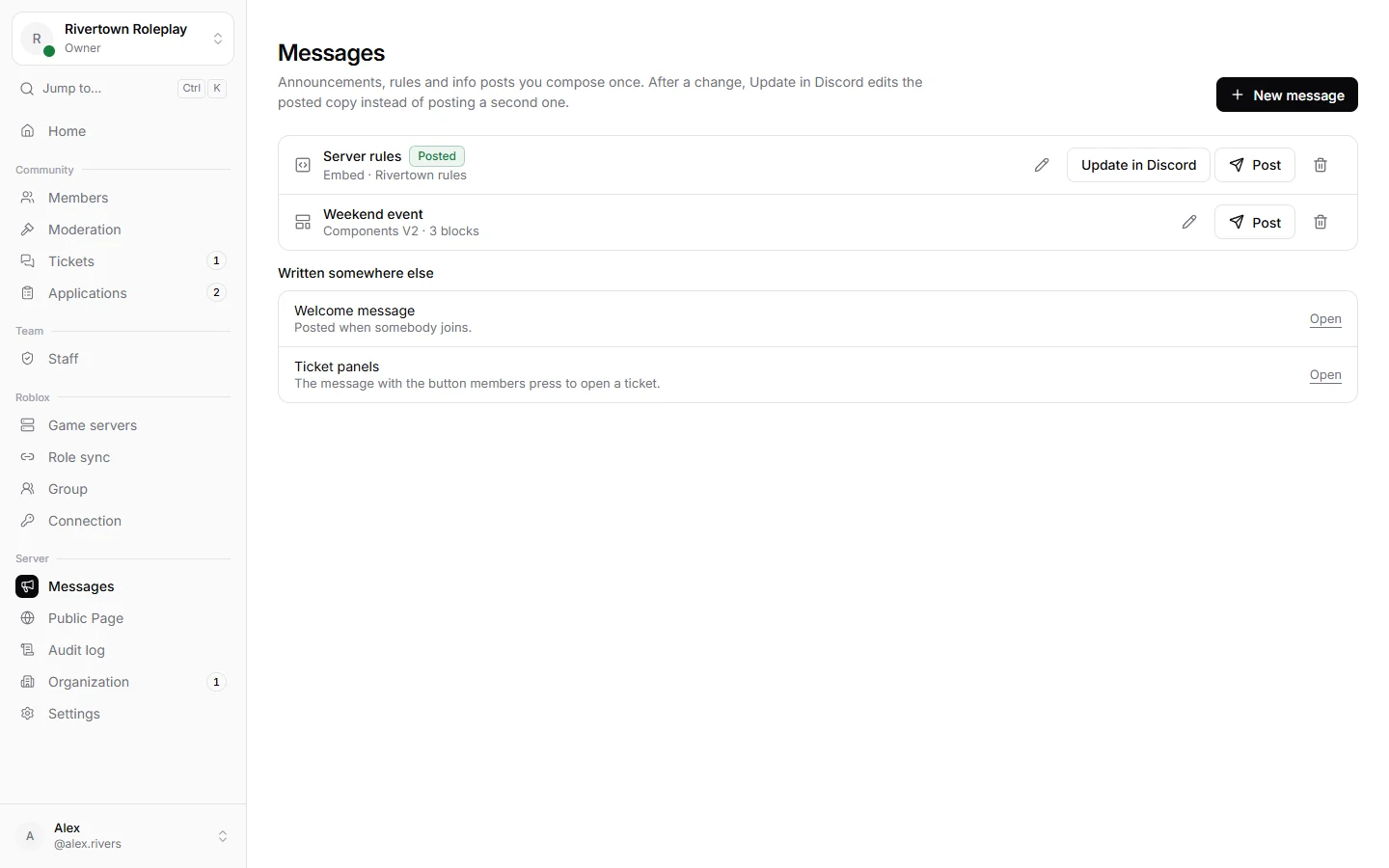
Rules, information channels, announcements: build them once in the dashboard, post them with the bot, and change them later without reposting. Your channel stays tidy, and links to the message keep working.
Embed or Components V2
| Built as | Looks like | Good for |
|---|---|---|
| Embed | A box with a coloured stripe on the side: title, text, fields, a picture and a footer. | Short announcements, a single notice. |
| Components V2 | Discord’s newer layout: blocks of text, text with a picture beside it, images, separators and link buttons, in one or more boxes. | Rules, info channels, anything long or with several parts. |
Making and posting a message
- Open Messages and press New message.
- Give it a Name (only your team sees it) and pick where to Start from: a blank embed, a blank canvas, or a ready message such as Server rules, Announcement, Information, Event or Step by step.
- Change the blocks. Each block on the canvas already looks the way Discord shows it, and the preview underneath shows the whole message.
- Press Post and choose a Channel. With unsaved changes it saves them first.
While you build
- Take back a change: the arrows at the top, or Ctrl+Z (Ctrl+Shift+Z to redo). A removed block, a move or a word typed can all be taken back.
- Keys on the canvas: Delete removes the chosen block, Ctrl+D copies it, Alt+Up and Alt+Down move it, Esc lets go of it.
- Formatting: the bar above every text field makes text bold, italic, underlined, struck out or a spoiler, adds headings, lists, quotes and links (Ctrl+B, Ctrl+I, Ctrl+U, Ctrl+K).
- Channels and roles: the # and @ buttons above the text pick a channel or role by name. Mentions never ping anybody: the bot posts with every mention switched off.
- Boxes: the card at the top of the canvas is the start of the message. Set it up like any New box: in a box or loose, a colored stripe, hidden as a spoiler.
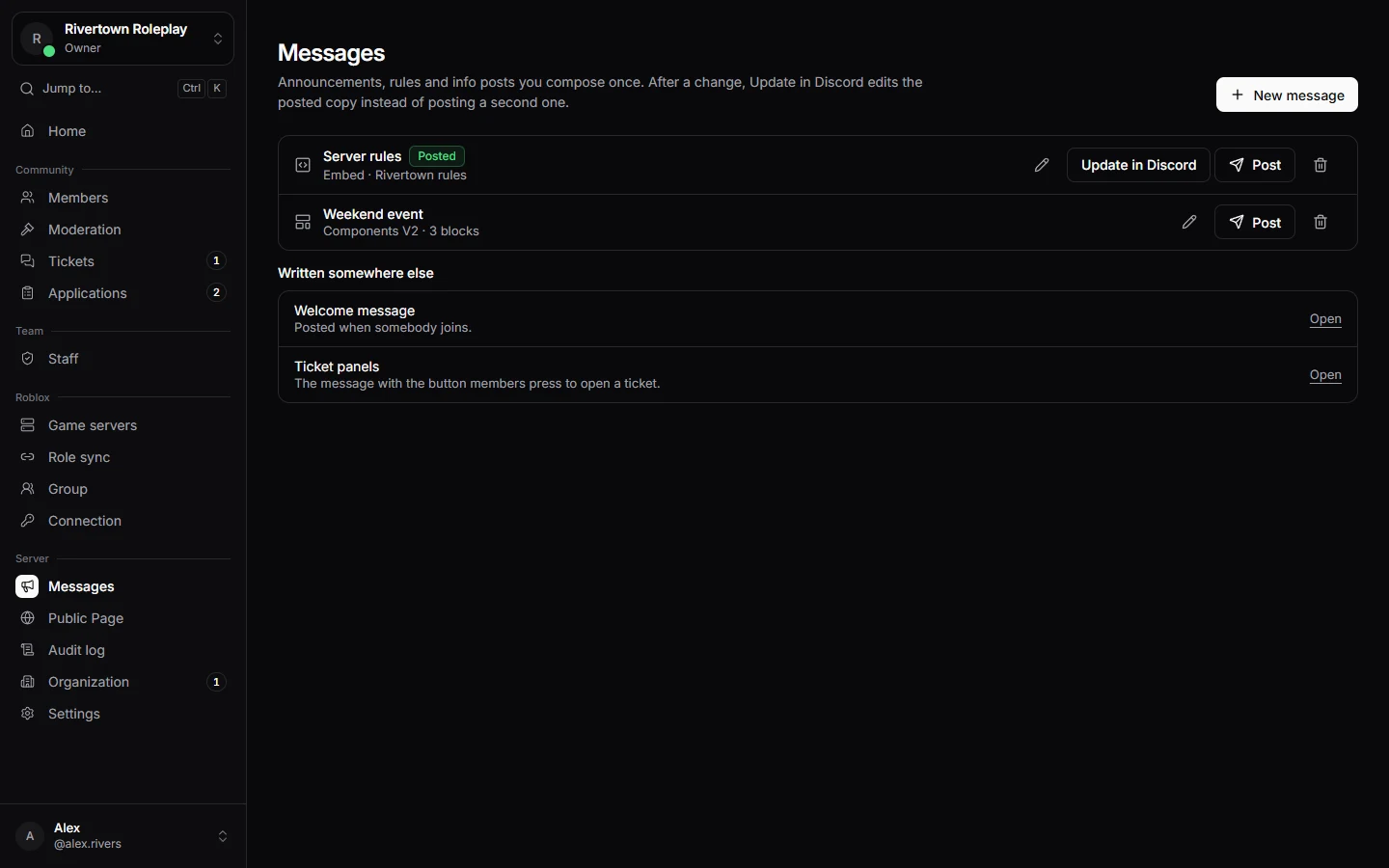
- Dark or light: the switch at the top shows every preview in Discord’s dark or light theme.
Changing a posted message
Edit the message and press Update in Discord, in the editor or in the list. With unsaved changes the editor shows Save and update and does both. The message in Discord changes in place: no new message, no ping, and links to it keep working. Technified keeps track of the copy you posted last. Posting it again sends a new copy, and the old one stays until you delete it in Discord.
When two people edit the same message, the second to save is told that it changed in between, and chooses to load the other version or to save over it. Nothing is overwritten without asking. The copy button in the list makes a new message to start from.
Good to know
Still stuck? Get help from the Technified team.