
Connecting your Roblox game
Connect your Roblox game, and the bans and mutes your team gives also hold in game, staff are recognised in game, their time in game is counted, and you can see and message every live server from the dashboard.
What changes in your game
- Everybody who joins is checked: a banned player is turned away with the reason and where to appeal; a muted player cannot chat or use voice.
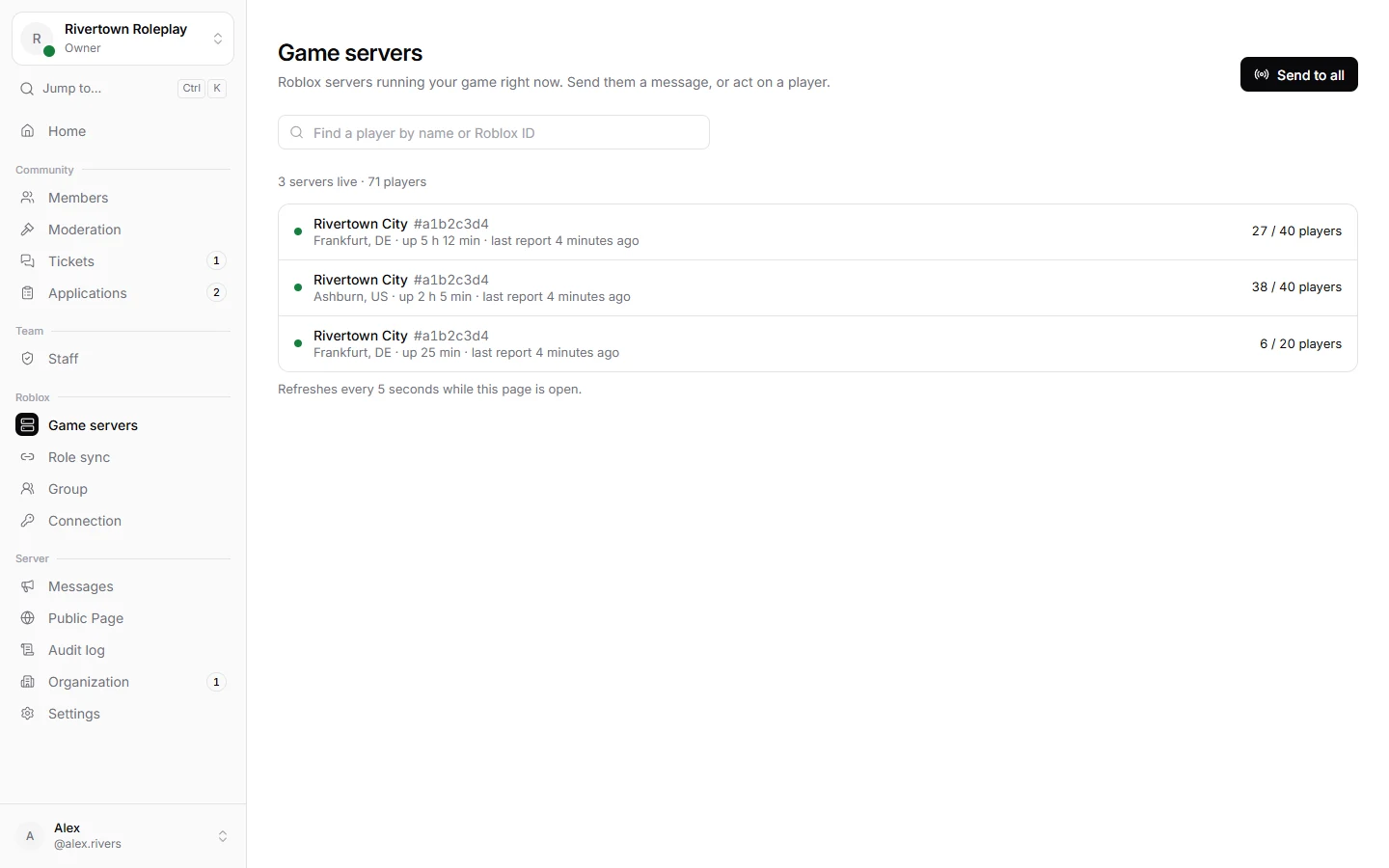
- Your game servers show up live under Game servers, and take kicks, bans, mutes, messages and announcements from the dashboard within a few seconds.
- Time your staff spend in game is counted for their hours and quotas, as long as their Roblox account is linked.
- With Adonis:
:kick,:ban,:mute,:warnand their undoing are recorded in Technified too, credited to the moderator, so there is one ban list.
Before you start
- Edit access to the place in Roblox Studio.
- The permission Create and revoke API keys in Technified.
- If you use Adonis: Adonis is already in the game, with its loader in ServerScriptService.
Installing
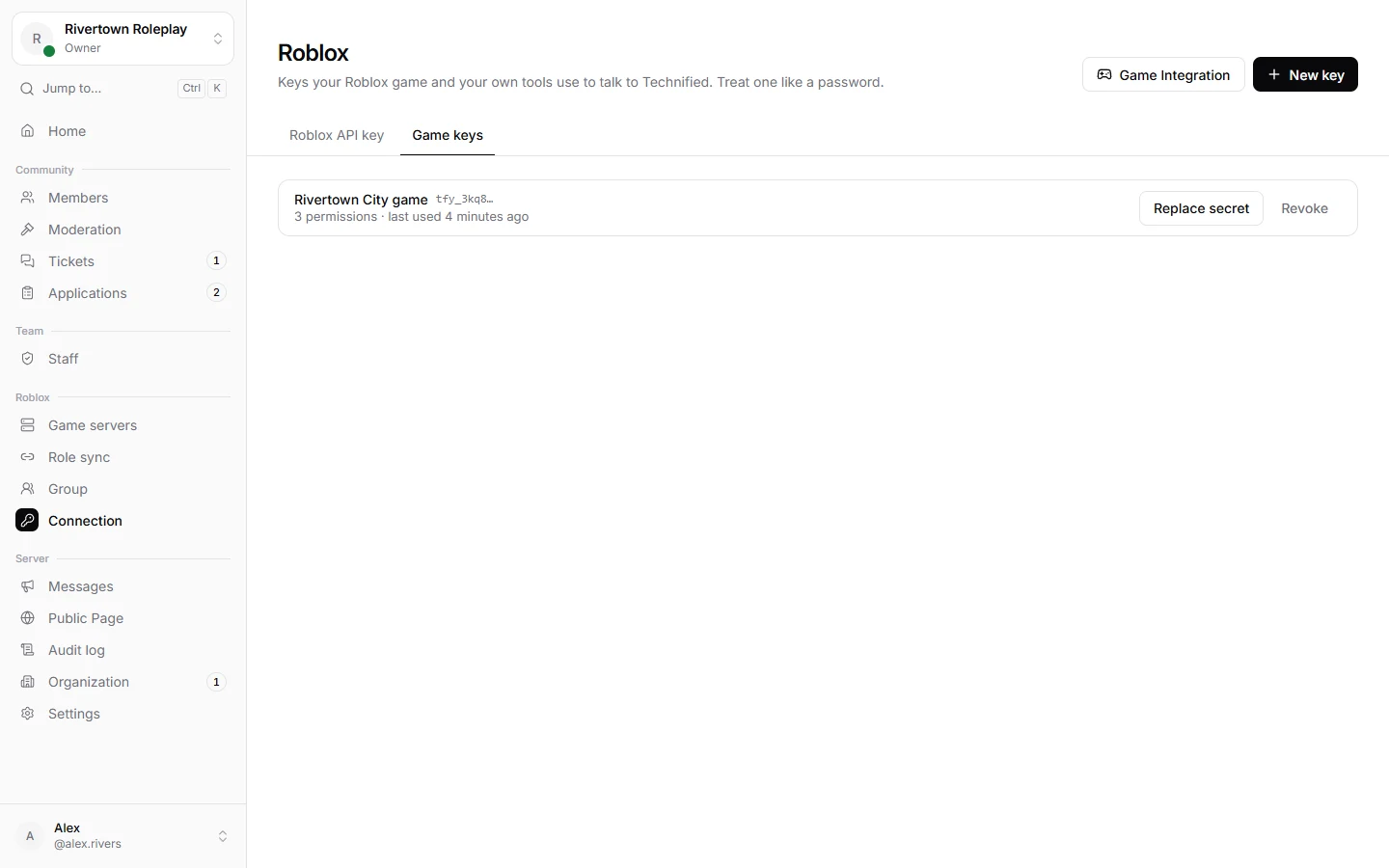
- In the dashboard open Integration → API keys and press Game Integration.
- Choose your admin system: Adonis, or None, or another one. Press Create key and code. Technified makes an API key for this game and one line of code.
- Open your place in Roblox Studio, then the command bar: View → Command Bar.
- Paste the line and press Enter. The output says that Technified was installed. It also switches on HTTP requests, which the game needs to reach Technified.
- Publish the place. Servers started from then on show up under Game servers. Old servers keep running without it until they close.
| Choice | What is put into your game |
|---|---|
| Adonis | A small Adonis plugin in the loader’s Config → Plugins folder. |
| None, or another one | A small Script in ServerScriptService, and a LocalScript in StarterPlayerScripts that shows players messages from staff. |
Good to know
Tip
_G.Technified.Report, so there is still one ban list.Game servers
Game servers lists every server running right now, with its players. Find a player across all servers, message one player, announce to a server or to every server, kick, or shut a server down. With several games connected, choose which game a broadcast goes to.
Adonis and Roblox’s new chat
Roblox is changing how chat works in every game. It switches on by itself in February 2027, and from May 2027 every game uses it. After that, Adonis no longer hears commands typed into chat the old way, such as :kick, so they do nothing and Technified cannot record them.
To keep chat commands working, let Adonis add them to Roblox’s chat as slash commands:
- In Roblox Studio open Adonis_Loader → Config → Settings.
- Set
settings.ChatCreateRobloxCommands = true. - Publish the place. Staff then type commands with a slash in front, for example
/:kick player.
Good to know
TextChatService.PlatformIntegratedChat to Enabled in Studio.Still stuck? Get help from the Technified team.