
Staff roles and permissions
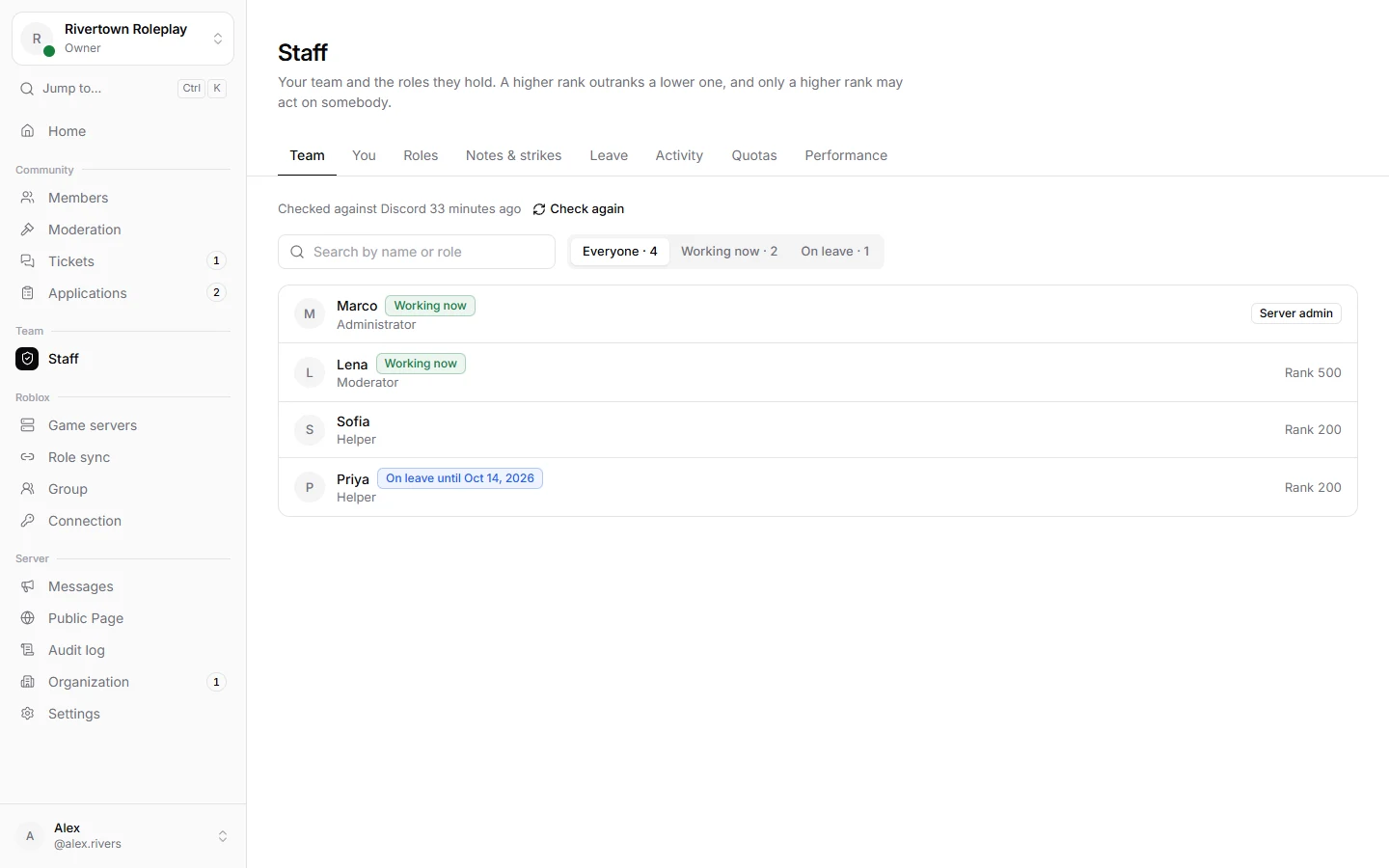
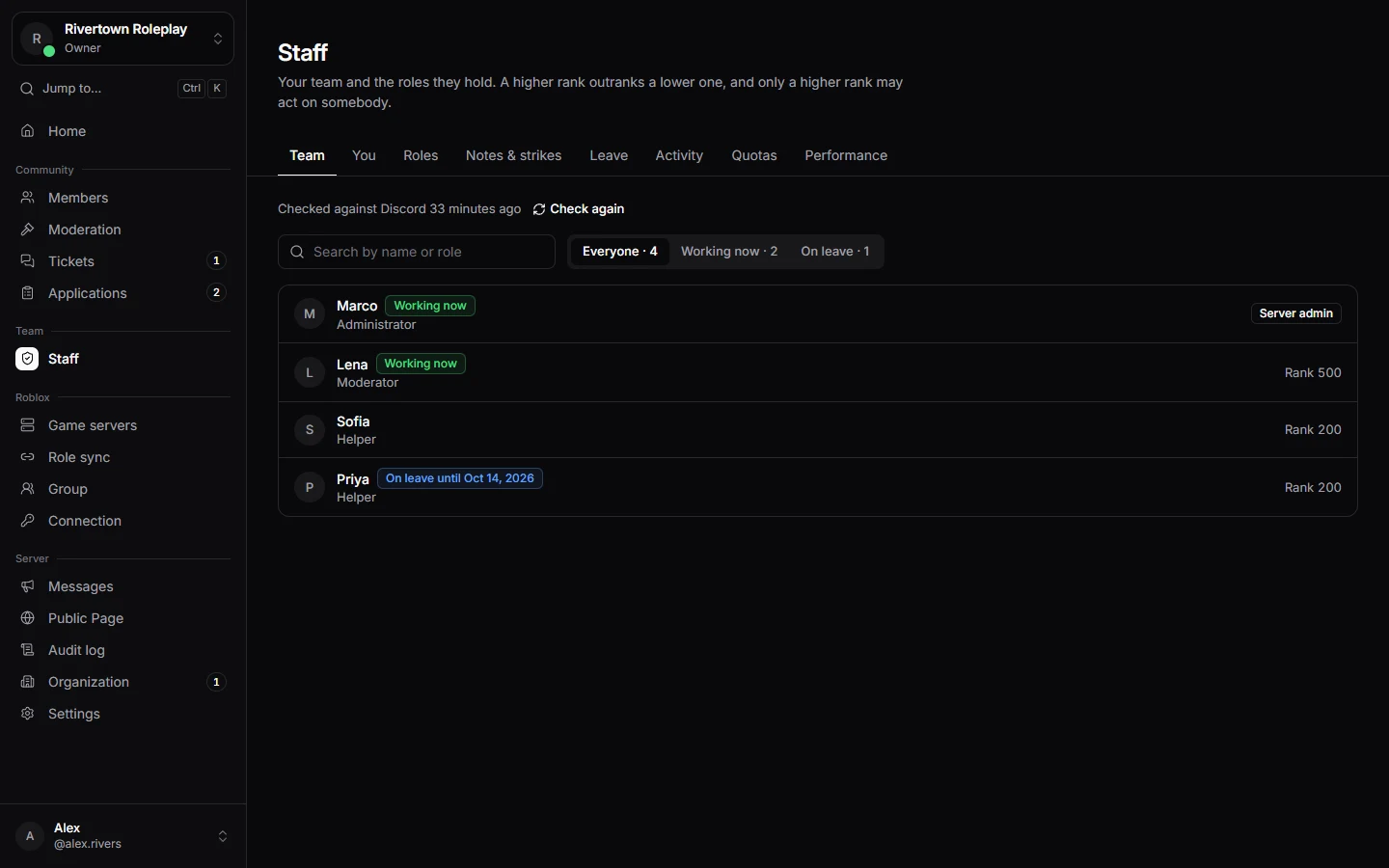
Technified does not look at your Discord permissions to decide what staff may do. It uses staff roles, which you make here: each says who belongs to it, how senior it is, and what its members may do. Server administrators may always do everything on their own server.
How it works
A staff role has three parts:
| Part | What it decides |
|---|---|
| Who belongs to it | Usually a Discord role: everybody with your Discord role “Moderator” is in the staff role Moderator. It can also be a rank range or one role in your Roblox group; then only members who linked their Roblox account count. |
| Staff rank | A number from 1 to 1000. Higher is more senior. Staff can only punish, lift or write strikes about somebody with a lower staff rank. |
| What holders may do | The permissions, ticked one by one. The tables below say what each one unlocks. |
Somebody with several staff roles gets every permission of all of them, and the highest of their ranks. Somebody with none is not staff, however many Discord roles they have.
Good to know
An example team
A typical roleplay server could start like this, then adjust:
| Staff role | Rank | Permissions |
|---|---|---|
| Trial Moderator | 100 | See members, See punishments, Issue and lift punishments, See tickets, Handle tickets. |
| Moderator | 200 | Everything above, plus See evidence, See linked accounts, See applications and appeals. |
| Senior Moderator | 300 | Everything above, plus Decide applications and edit forms, Write notes and strikes, See staff, Lift any punishment. |
| Head of Staff | 500 | Everything above, plus Manage staff roles, leave and quotas, See the audit log. |
Leave the gaps between ranks, so a new role can go in between later. Settings, keys and role sync are usually left to your Discord administrators, who may do everything anyway.
Making a staff role
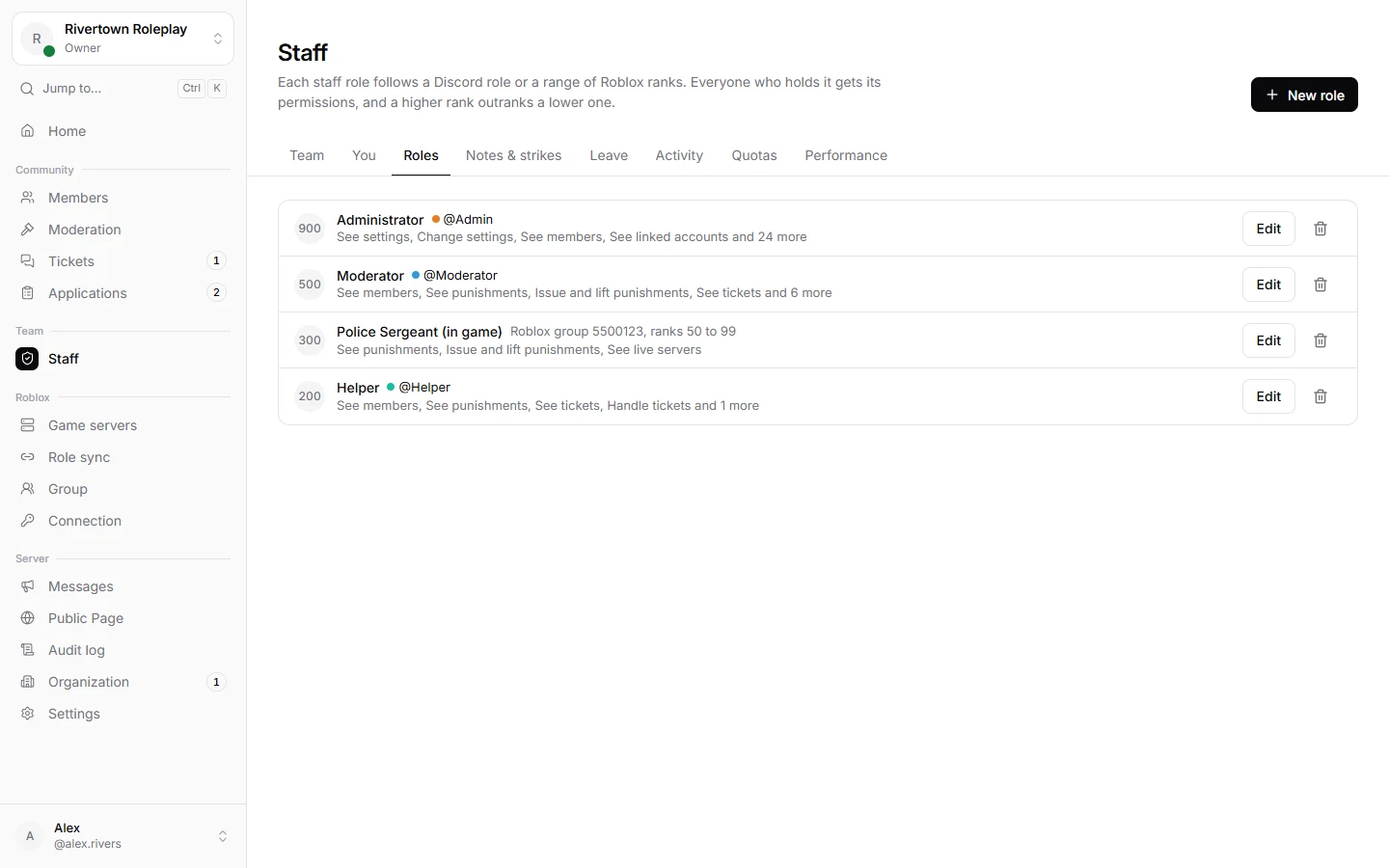
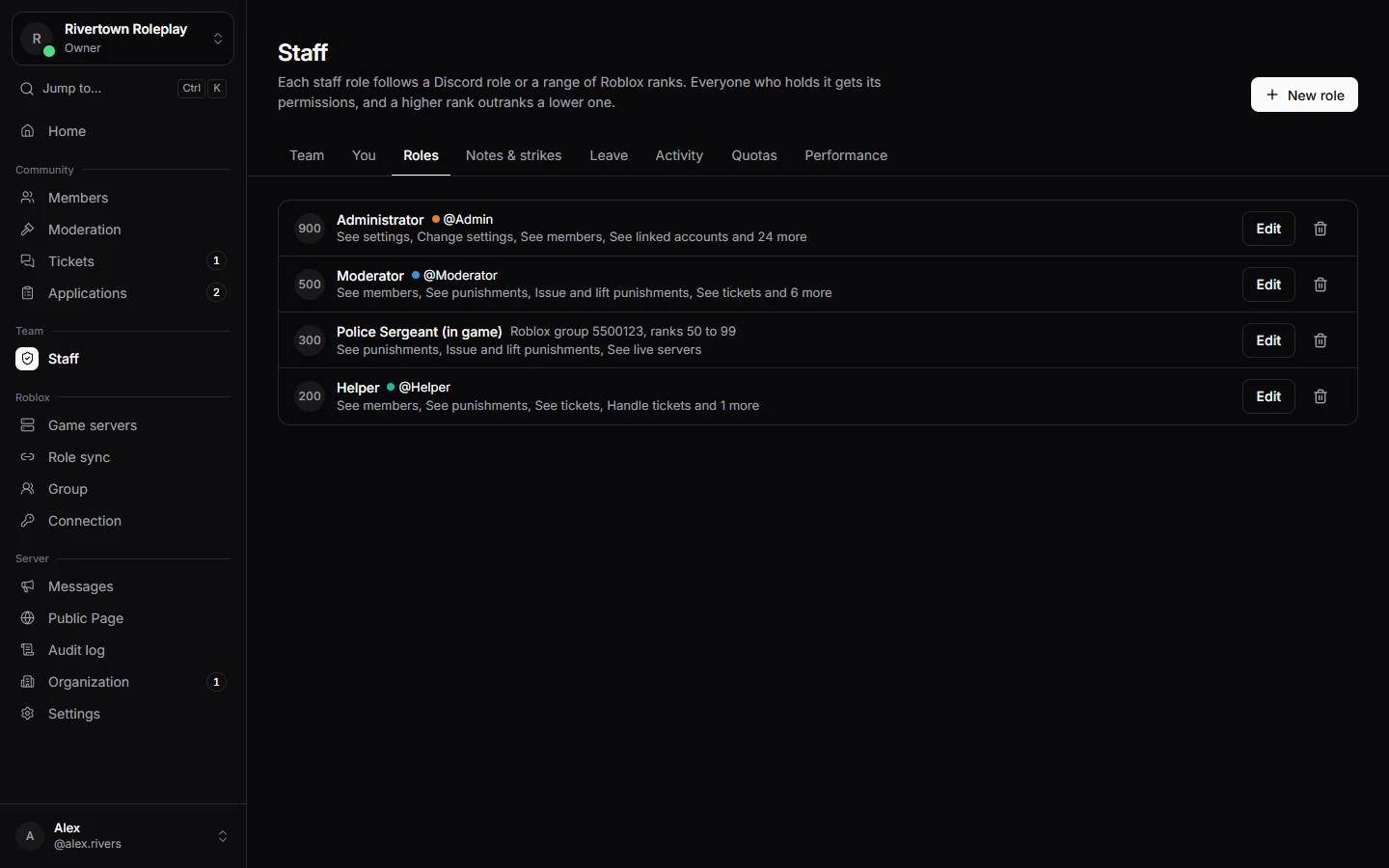
- Open Staff → Roles and press New role.
- Give it a Name, like Moderator.
- Under Follows, choose a Discord role, or a rank range or one Roblox role in your group.
- Set the Rank.
- Tick What holders may do and save. You can only give a role permissions you hold yourself. To point an existing role at another Discord role or rank, you need every permission it has.
If your server is in an organization that shares staff roles, Applies on lets one role count on every server of the organization.
The permissions
Each permission below is named as it appears when you tick What holders may do. A permission that changes something always includes the one that only looks: whoever may issue punishments may also see them. Rank applies on top of every permission: none of them lets anybody act against someone ranked at or above them.
Members
| Permission | What it allows |
|---|---|
| See members | The Members page: search, open a member, export the list. In Discord, /whois and /reverse-whois. |
| See linked accounts | Which Roblox account each member linked, and when. Includes seeing members. |
| Send verification links and remove links | Send somebody a link to verify, remove the link of a member below your rank, and post the verify button with /verification-panel or from Settings. |
Moderation
| Permission | What it allows |
|---|---|
| See punishments | The Moderation page, anybody’s history, statistics, templates and decay rules. In Discord, /history and /warnings. |
| Issue and lift punishments | Ban, mute, kick and warn on Discord and Roblox, several people at once, lift what you or lower ranks issued, attach evidence, and change templates and decay rules. In Discord, /ban, /mute, /kick, /warn, their Roblox versions and the commands that lift them. |
| Lift any punishment, even one a higher rank issued | Lift punishments that somebody ranked above you issued. Without it, those stay for them to lift. |
| See evidence | Open and download the screenshots and files attached to punishments. Seeing a punishment alone does not show its evidence. |
| API keys: act against staff, with the rank of the moderator in game | Only matters on an API key. The game may then punish staff, but only with the rank of the moderator who did it in game. Without it, a key cannot touch your team. |
| See chat filters | The chat filters and the list of messages they caught. |
| Change chat filters | Make, change and delete chat filters, and choose what they do when they catch something. |
Tickets and forms
| Permission | What it allows |
|---|---|
| See tickets | Every ticket and its messages, saved transcripts, and the ticket panels and menus. |
| Handle tickets | Claim, hand back, add and remove people, close, reopen, delete and save a transcript. Also build and post ticket panels and menus. |
| See applications and appeals | Every submission with its answers, attached files and the comments of the team. |
| Decide applications and edit forms | Accept or decline submissions, comment on them, turn one into a ticket, and make or change forms. |
Reports (experimental)
| Permission | What it allows |
|---|---|
| See reports | The Reports page: what members and games reported, the kept message, the evidence and what a game sent. |
| Handle reports | Claim, hand back, resolve and dismiss reports, in the dashboard and with the buttons in the report channel. Includes See reports. |
| Send reports from a game or tool | Only for an API key: send reports in from your game’s own report menu, with files. People report from Discord without any permission. |
Reports are only there once a server switches them on under Settings, Experimental. See Reports.
Documents
| Permission | What it allows |
|---|---|
| Read documents for staff | Read documents set to Staff, and those set to Some roles when you hold one of the roles picked. |
| Write and manage documents | Read every document, write, arrange and delete them, add pictures and videos, choose who reads each one, and restore earlier versions. |
Staff
| Permission | What it allows |
|---|---|
| See staff | The Staff pages: the team, staff roles, activity, quotas, results, performance, and everybody’s notes and strikes. |
| Write notes and strikes | Write, change and withdraw notes and strikes, ask for leave for somebody else, and enter hours worked away from the game. |
| Manage staff roles, leave and quotas | Make, change and delete staff roles, decide leave requests, set quotas and review their results, and set how performance is weighed. |
Game servers
| Permission | What it allows |
|---|---|
| See live servers | The game servers running now, who is on them, and finding a player across all of them. |
| Send commands to a server | Act on one server: message or kick a player, announce, or shut that server down. Kicking, banning, muting or moving staff at your rank or above is refused. |
| Send to every server at once | Announce on, or shut down, every server of a game at the same time. |
Roles and groups
| Permission | What it allows |
|---|---|
| See role rules | The Role sync rules, and checking which roles a member should get. In Discord, /bindings. |
| Change role rules | Make, change and delete role rules, and press Update roles on a member to apply them at once. |
| See Roblox groups | Your Roblox group: members and their ranks, roles, join requests and history. |
| Change Roblox group ranks | Change ranks, accept and decline join requests, set the Roblox API key, and choose which Discord roles give which Roblox rank. |
Server
| Permission | What it allows |
|---|---|
| See settings | Settings, usage and storage, the Discord commands, saved messages and the verify button. In Discord, /configure. |
| Change settings | Change every setting, the welcome message and the public page, build and post messages, turn commands on and off, make a backup, and manage your pictures. |
| Write and post messages | Only the Messages page: compose, change, post and delete saved messages, and upload the pictures they show. Nothing else of the settings. Everybody who may change settings has it too. |
| See the audit log | Who did what, and when, on your server. |
| See API keys | The keys your games and tools use, without their secrets. |
| Create and revoke API keys | Make, replace and delete keys, and get the install code for a game. A key can never get more than you hold yourself. |
Good to know
What needs no permission
Everybody on your team may always, without any permission:
- see their own staff page, with their hours, quotas, notes and strikes,
- ask for leave for themselves,
- verify, update or remove their own Roblox link,
- read documents set to Public or Whole team.
Freeing space under Settings → Usage needs the permission that goes with the kind of file: evidence needs See evidence, form files need Decide applications and edit forms, and so on.
Leave, quotas, activity and strikes are set up under Staff; see Managing your staff.
Still stuck? Get help from the Technified team.