
Organizations
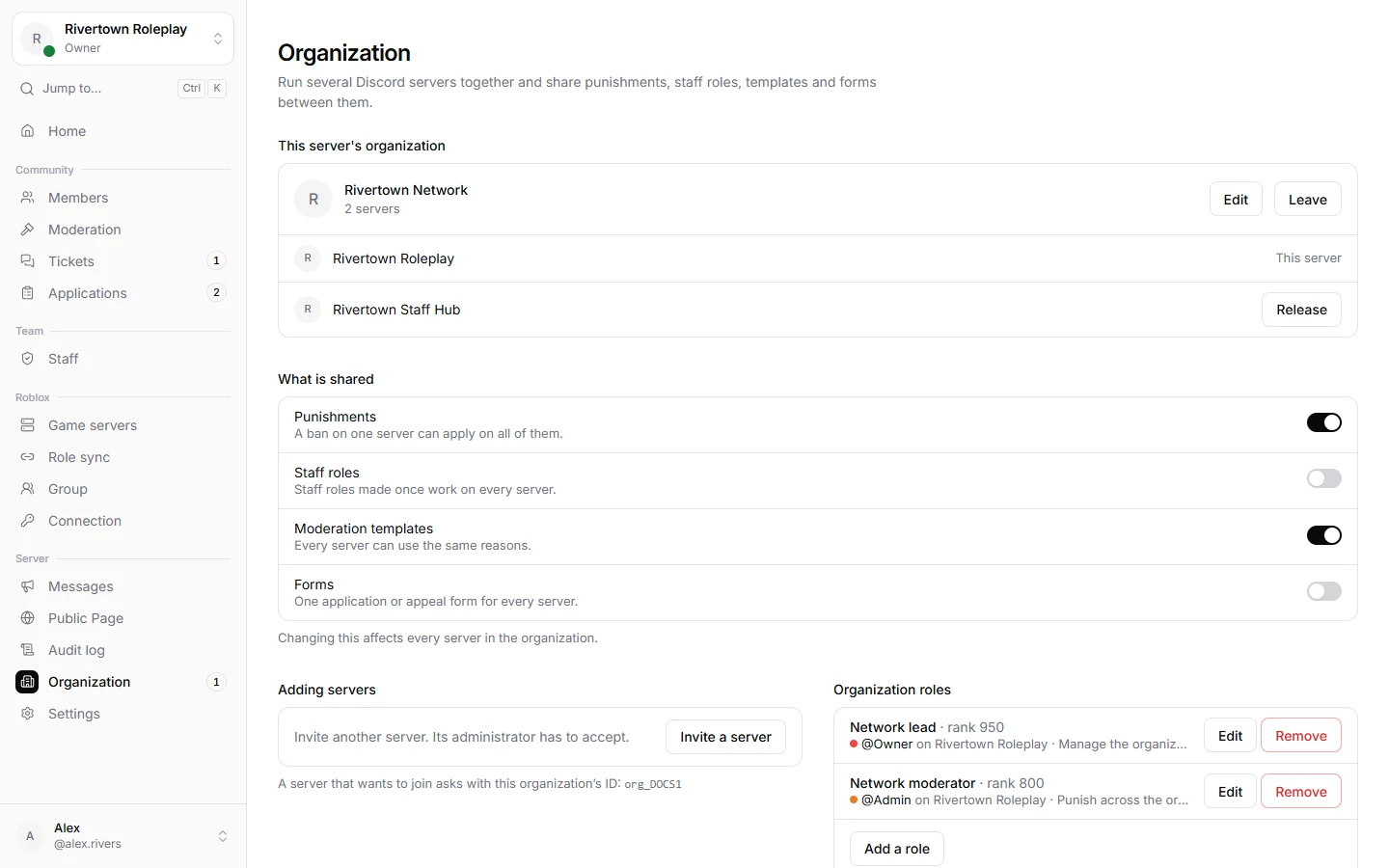
An organization is several Discord servers run as one: for example a main server, a staff server and an appeals server. They can share bans, staff roles, punishment templates and forms, so you set things up once.
Do you need one?
Only if you run more than one Discord server for the same community. A single server needs nothing here: it is already its own organization of one.
Bringing servers together
Both sides have to agree. Either:
- On the organization’s page, press Invite a server and enter its Discord server ID. That server’s administrator presses Join on their Organization page.
- Or, from the server that wants to join, Ask to join an organization with its Organization ID, and the organization accepts.
A number next to Organization in the sidebar shows when an invitation or a request is waiting.
What is shared
Under What is shared, switch on each part separately:
| Shared | What it means |
|---|---|
| Punishments | A ban can apply on every server at once. Somebody banned from the main server is also kept out of the staff server. |
| Staff roles | A staff role made once can count on every server. |
| Moderation templates | Every server picks from the same saved reasons. |
| Forms | One staff application or appeal form for all servers. |
Who runs the organization
Managing the organization, and punishing across it, comes from organization roles: a Discord role on one of the servers that gives permissions on all of them. Server administrators and staff roles only act on their own server.
- On the organization’s page, under Organization roles, press Add an organization role.
- Pick the server the role is on, and the Discord role, for example “Community Leadership” on your main server.
- Set its rank and tick what holders may do, including Manage the organization and Punish across the organization. You can only give permissions your own organization roles have.
The history on the organization’s page shows what happened on every server. It needs an organization role with See the audit log, or one that manages the organization.
Careful
Leaving
A server’s administrator can press Leave at any time. The server keeps everything it owns and stands on its own again. Bans the organization gave across all servers stay with the organization.
Still stuck? Get help from the Technified team.