
Managing your staff
Under Staff you see who is on your team, how active they are, and you manage leave, quotas, notes and strikes. This page is for whoever runs the team.
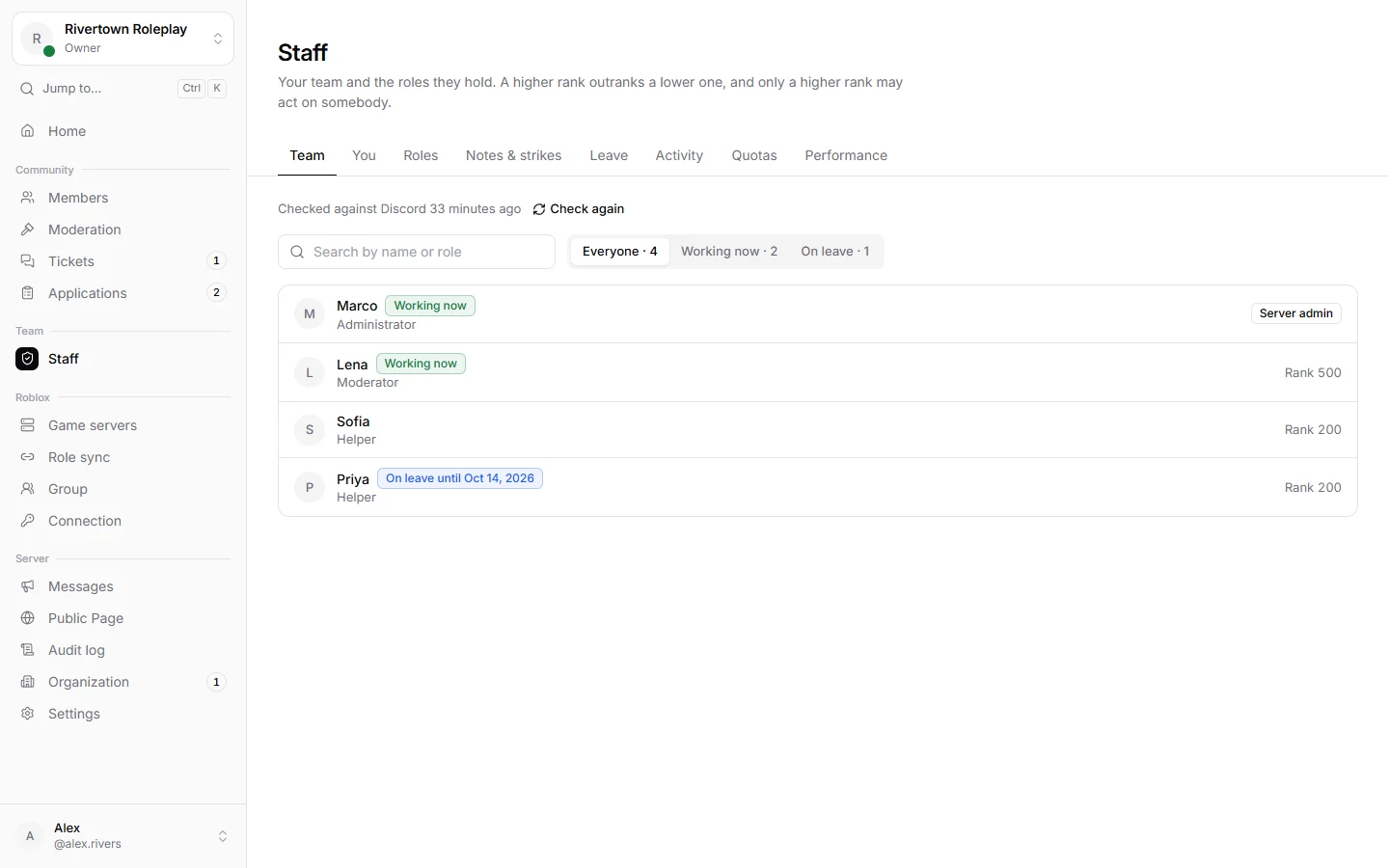
The tabs
| Tab | What it is for |
|---|---|
| Team | Everybody holding a staff role, with their role, rank and hours. |
| You | Your own page: hours, quotas, leave and record. |
| Roles | Staff roles and their permissions. See Staff roles and permissions. |
| Notes & strikes | Everything written about your staff. |
| Leave | Leave requests to approve or decline. |
| Activity | Hours per person and every shift, from your games or logged by hand. |
| Quotas | Hour goals, and the results of each period. |
| Performance | A score per person from what they did. |
Where hours come from
- From your game: with the game module, time a staff member spends in one of your game servers is counted, as long as their Roblox account is linked. A shift ends when they leave, or five minutes after the game last heard of them.
- By hand: under Activity or on somebody’s staff page, Log time adds hours for work outside the game, like an event or tickets. Needs the permission Write notes and strikes.
Quotas
A quota is an hour goal that repeats. Under Quotas, make one:
| Field | What it means |
|---|---|
| Hours and Minutes | The goal, for example 4 hours. |
| Every (days) | How long one period is, for example 7. |
| Who it applies to | The staff roles it is for. Nothing ticked means everybody with a staff role. Administrators without a staff role are never asked. |
| Only count time in these games | Leave empty to count every game and time logged by hand. |
| When someone misses it | Send them a direct message, a manager reviews it first, or write a strike (with its severity). |
Fair to everybody: approved leave is taken off the goal for the days it covers, and somebody who joined during a period is only asked for the part they were there.
At the end of each period, Quotas → results shows who Met or Missed the goal. With “a manager reviews it first”, missed quotas wait under Needs review: choose Write strike or Let it go.
Careful
Leave
Staff ask for leave under Staff → Leave or with /leave request. Whoever may manage staff approves or declines it, and the person gets a direct message. Approved days are taken off their quotas.
Notes and strikes
- A note is something to remember about a staff member: a good job, a talk you had. The staff member sees notes about themselves.
- A strike is a formal warning for staff, low, medium or high. Give it an end in days, or let it count until it is withdrawn.
Write them under Notes & strikes, on a staff page, or with /note and /strike in Discord. Like punishments, you can only write them about lower staff ranks. What a number of strikes leads to is your team’s decision; Technified does not demote anybody.
Performance
Performance gives everybody a score for the period: points per hour active, per moderation action, per ticket, per application decided, and minus points per strike. You set the weights under How it is scored. The counts behind the score are always shown next to it, so nobody is judged by a number alone.
Still stuck? Get help from the Technified team.