
Finding your way around
Once you open a server, everything for it is in the sidebar on the left, grouped by what it is for. You only see what your permissions allow.
Home
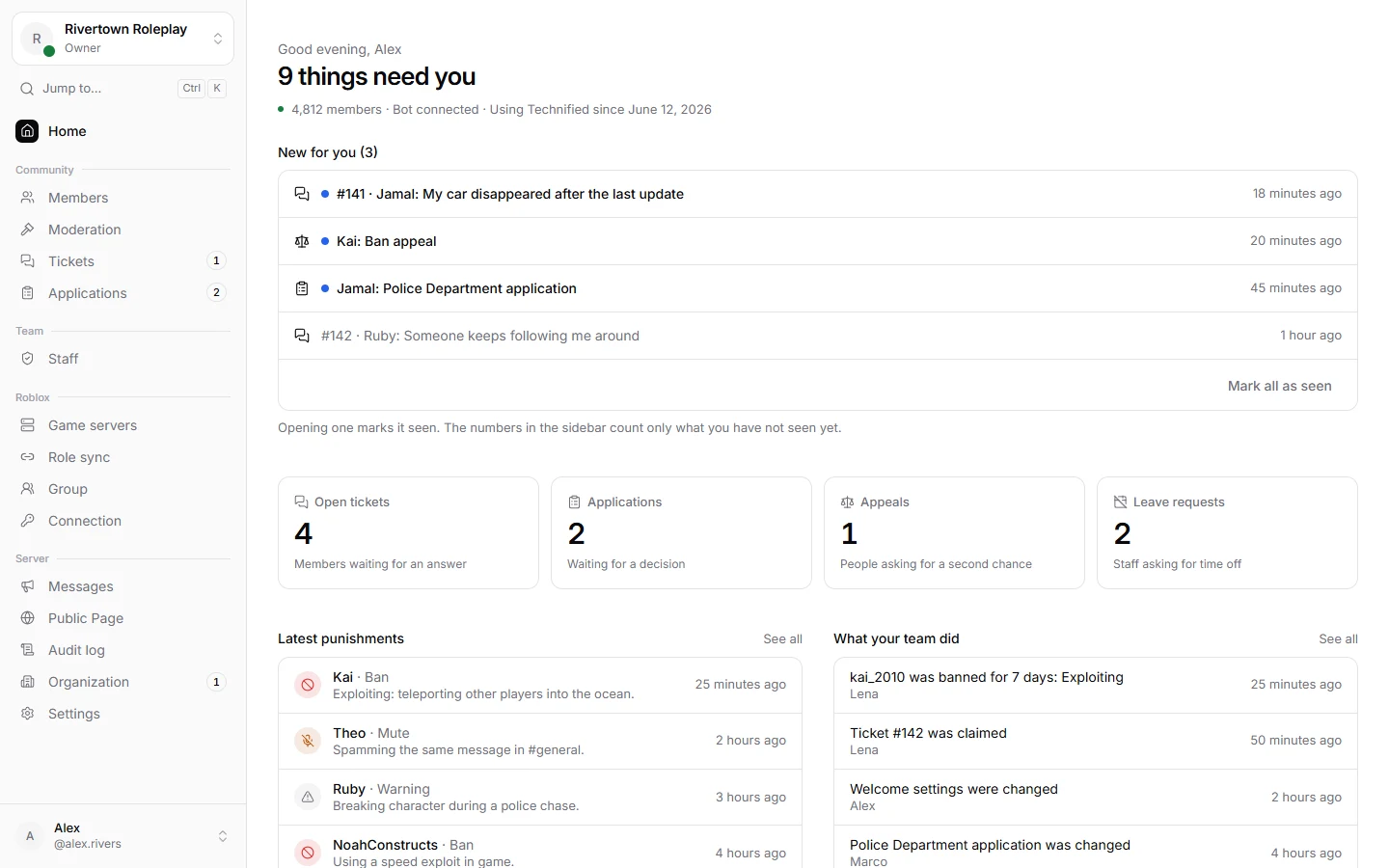
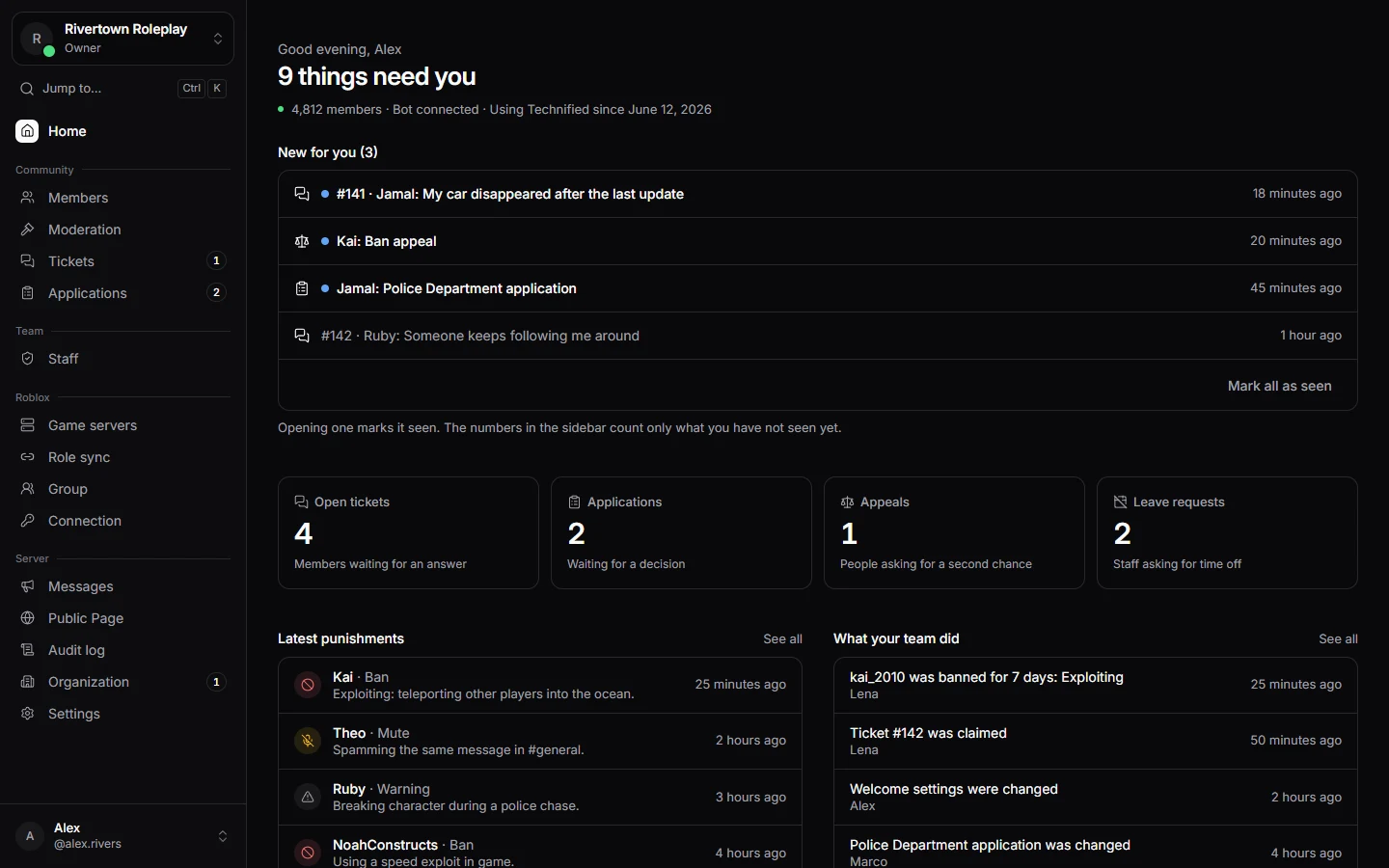
The home page answers one question: what needs you right now?
- The counts at the top: open tickets, applications and appeals waiting for a decision, and leave requests to answer. Only what you may handle is counted.
- New for you (or Waiting): the tickets and submissions themselves, newest first. What arrived since you last looked is marked new; opening it marks it as seen.
- Latest punishments, Connected games and What your team did: what happened recently.
- Finish setting up: the checklist, until everything on it is done.
The sidebar
| Group | Sections |
|---|---|
| Community | Members, Moderation, Tickets and Applications: the work with your members. |
| Team | Staff (roles, leave, hours, quotas, notes and strikes) and Documents. |
| Roblox | Game servers, Role sync, Group and Integration (API keys and the Roblox API key). |
| Server | Messages, Public Page, Audit log, Organization and Settings. |
A small number next to a section means something new is waiting there for you.
Switching servers
Press the server name at the top of the sidebar to switch to another server, or go back to Your servers. Under each server it says whether you are its owner, an administrator, staff or a member.
Jump to anything
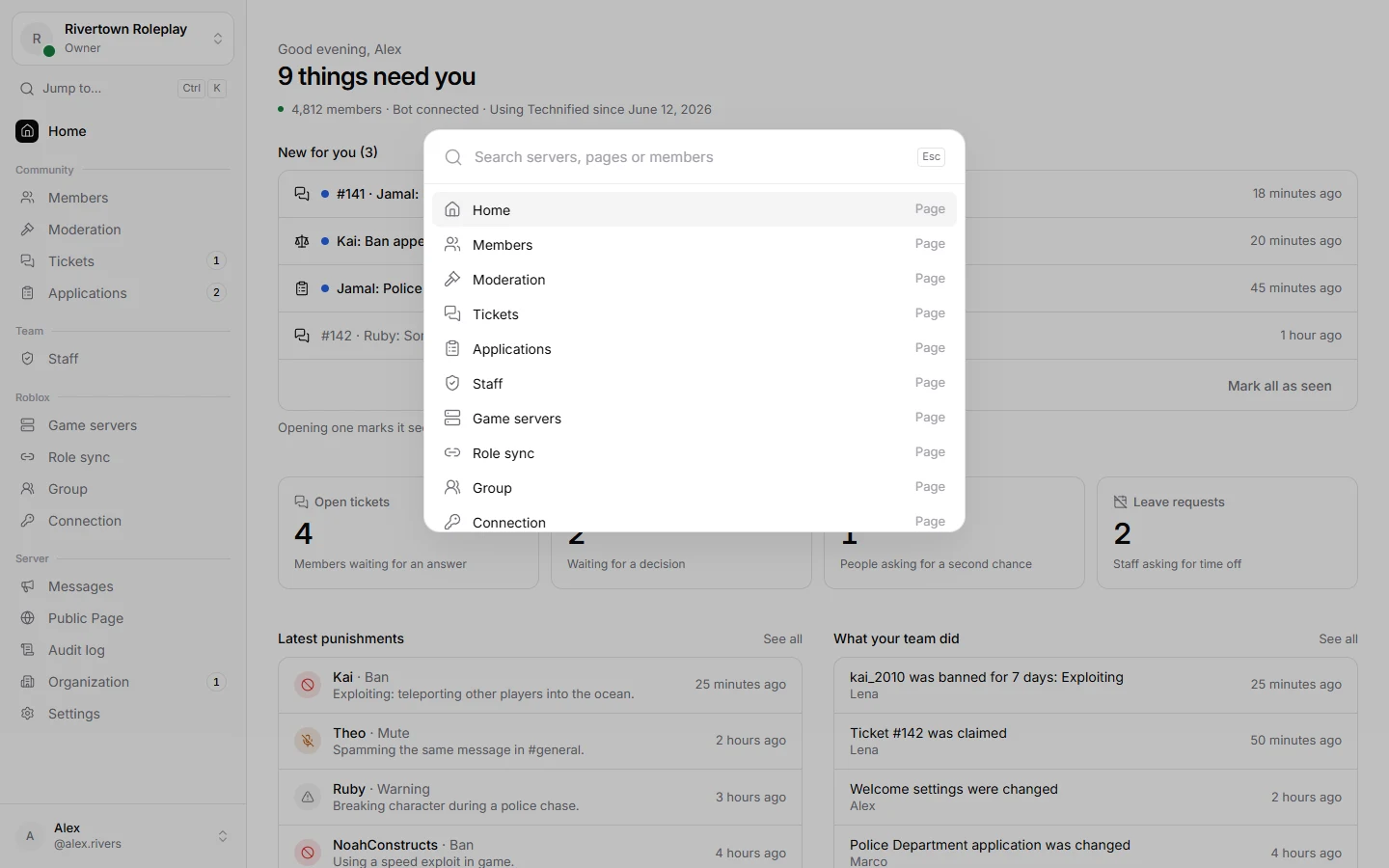
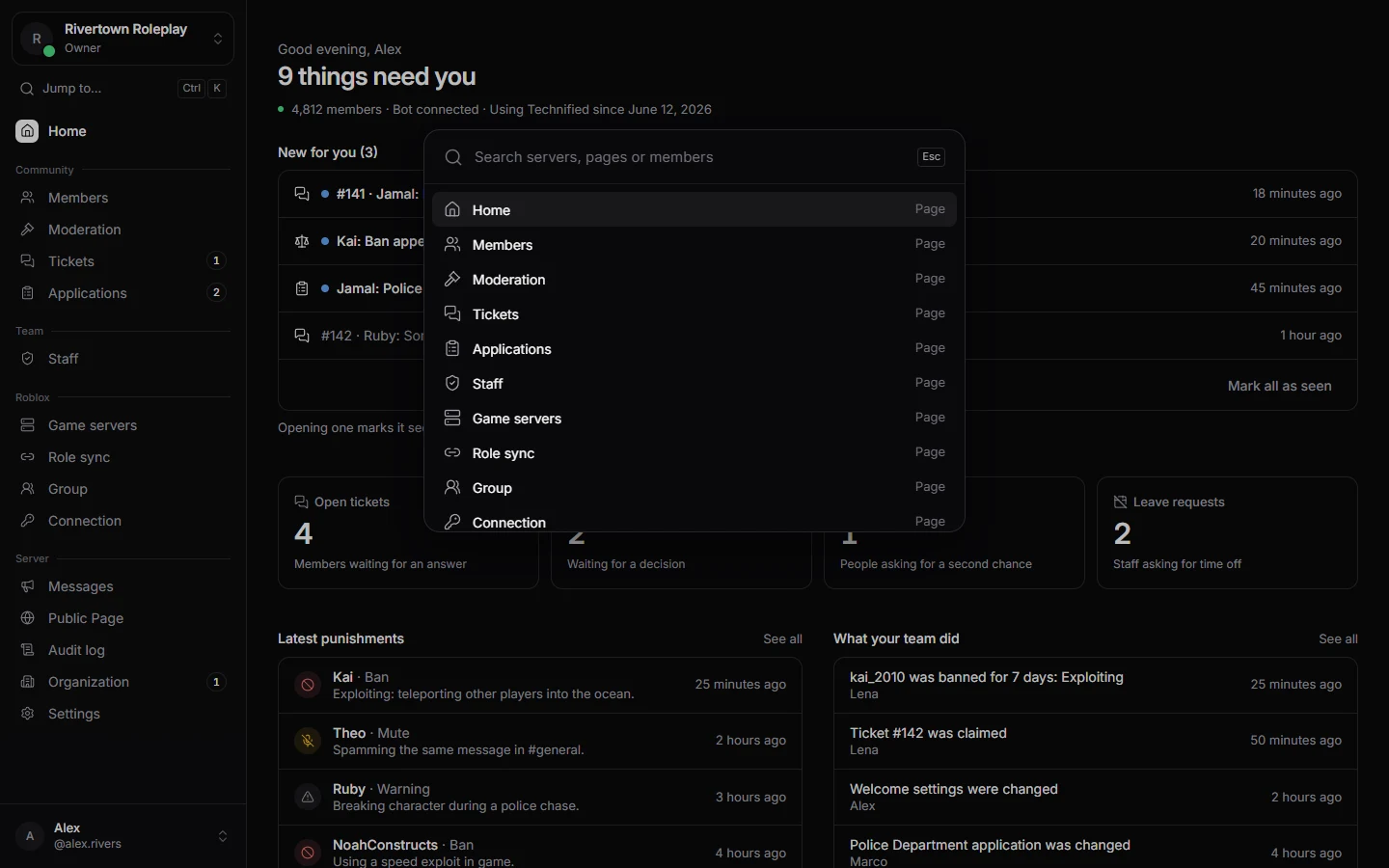
Press Ctrl + K (⌘ + K on a Mac), or Jump to… in the sidebar, and type: a page, a setting, a member or a document. Press ? for every keyboard shortcut. Each section also has a letter: G then M opens Members, G then P opens Moderation.
Your account menu
At the bottom of the sidebar is your name. From there you reach My account, this documentation, Help and support, the keyboard shortcuts, light or dark look, and Sign out.
Still stuck? Get help from the Technified team.