
API keys
An API key is the only credential the API knows. It belongs to one server, and can do exactly what you ticked when you made it, nothing more.
Making a key
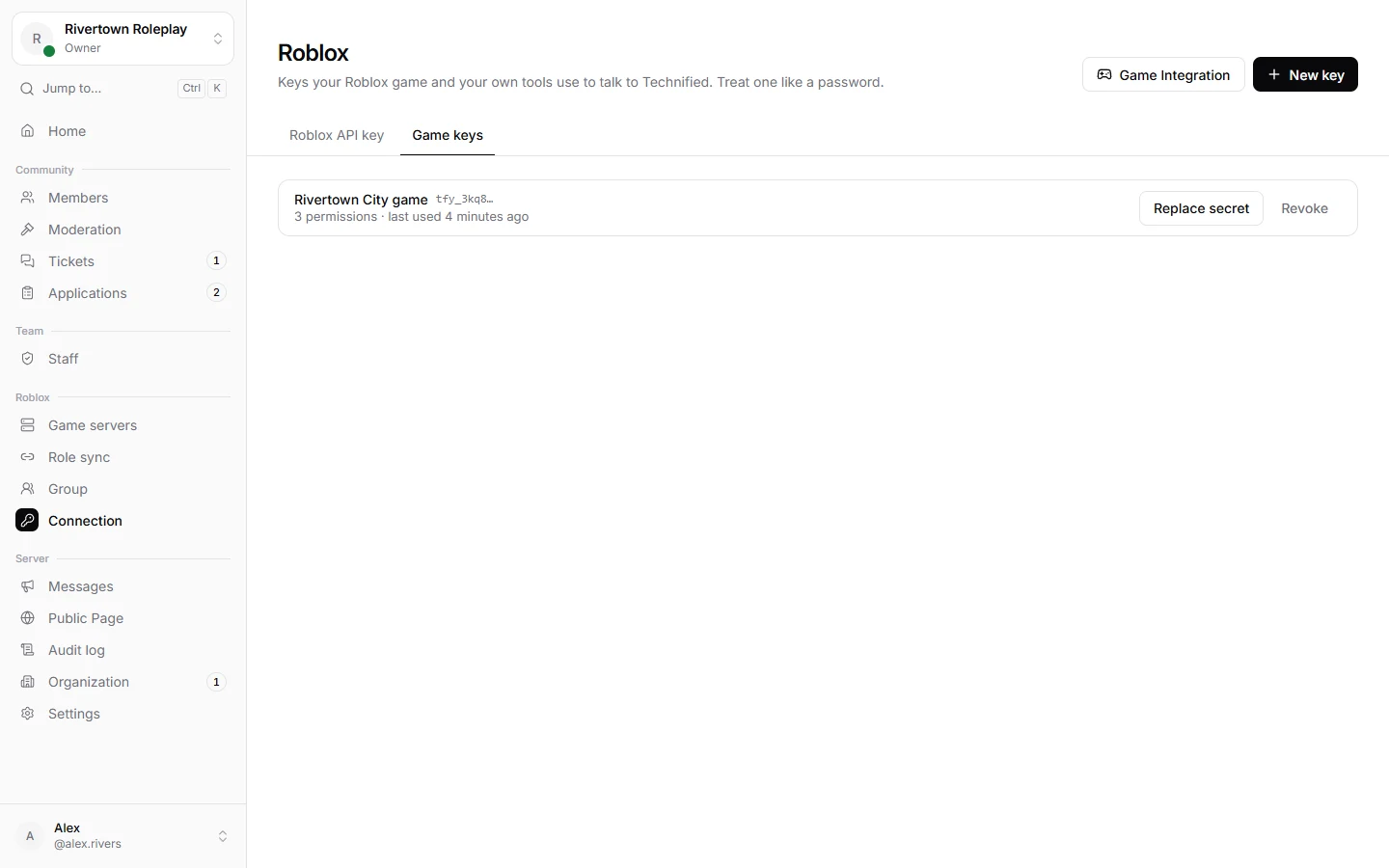
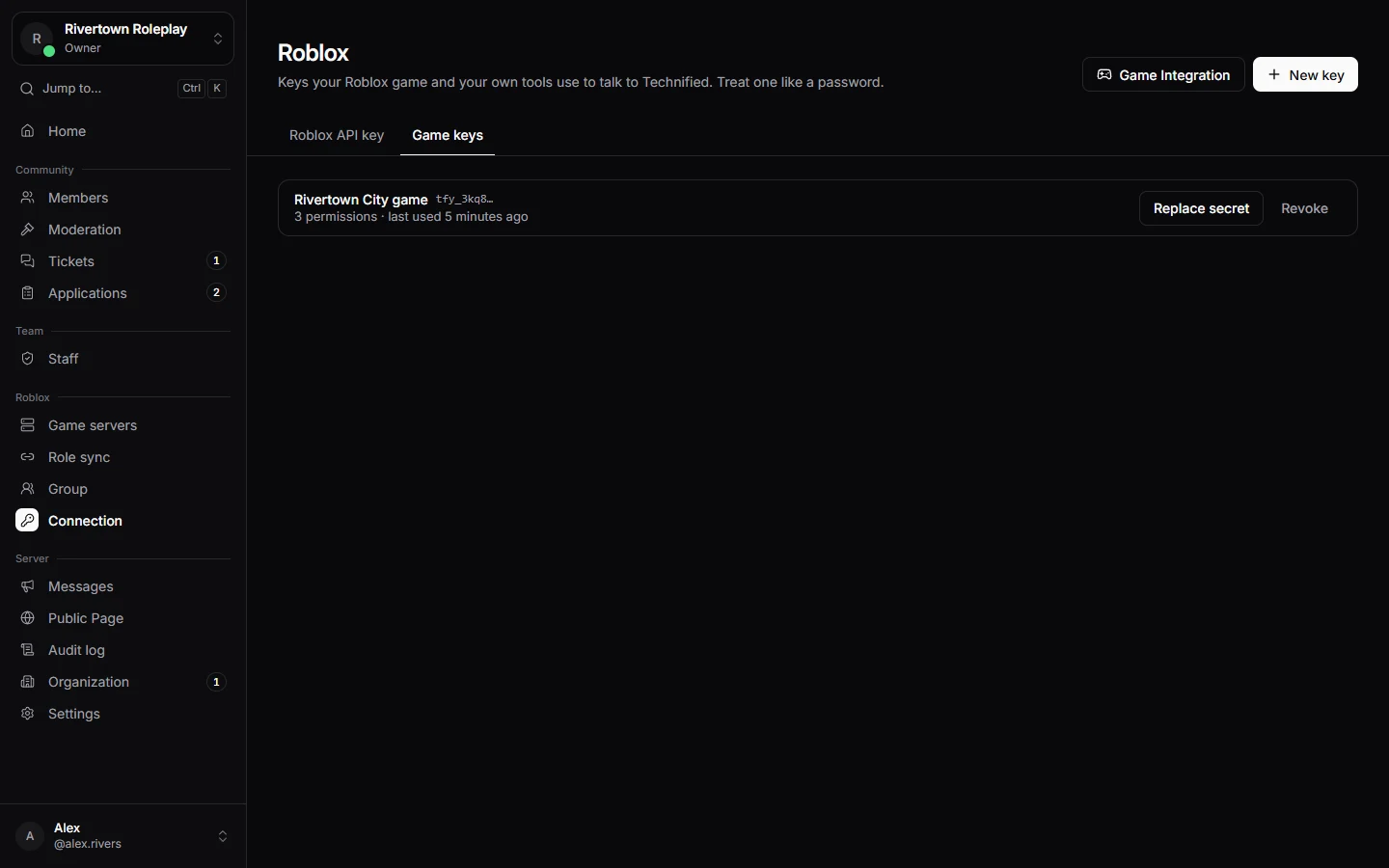
- In the dashboard, open your server, then Integration → API keys. You need the permission Create and revoke API keys.
- Press New key. A key works for any program, not only games.
- Give it a Name that says what uses it, like “Website” or “Our Discord bot”. It shows in the audit log next to everything the key does.
- Optionally give it a Category: pick one already in use or type a new one, like “Games” or “Bots”. The chips above the list then show one category at a time.
- Under What the key may do, tick only what your program needs. You can only give a key what you may do yourself.
- Copy the key. It starts with
tfy_and is shown only once. Lost it? Use Replace secret.
To rename a key or move it to another category later, press Edit next to it. That changes only how it is listed: the secret and what the key may do stay the same, so nothing using it has to change.
Sending it
Put it in the Authorization header of every request, after the word Bearer and a space:
Authorization: Bearer tfy_abc123_your_secret_hereThat is all. No username, no password, no token exchange. A key does not expire unless you give it an end date, and stops working the moment you revoke it.
Permissions: dashboard name and API name
The dashboard shows a permission by its name; the reference and error messages use its API name. They are the same thing:
| API name | In the dashboard |
|---|---|
members.read | See members |
verification.read | See linked accounts |
verification.write | Send verification links and remove links |
moderation.read | See punishments |
moderation.write | Issue and lift punishments |
moderation.lift_any | Lift any punishment, even one a higher rank issued |
moderation.staff | API keys: act against staff, with the rank of the moderator in game |
moderation.evidence | See evidence |
filters.read | See chat filters |
filters.write | Change chat filters |
tickets.read | See tickets |
tickets.write | Handle tickets |
forms.read | See applications and appeals |
forms.write | Decide applications and edit forms |
reports.read | See reports |
reports.write | Handle reports |
reports.submit | Send reports from a game or tool |
documents.read | Read documents for staff |
documents.write | Write and manage documents |
staff.read | See staff |
staff.write | Write notes and strikes |
staff.manage | Manage staff roles, leave and quotas |
servers.read | See live servers |
servers.command | Send commands to a server |
servers.broadcast | Send to every server at once |
bindings.read | See role rules |
bindings.write | Change role rules |
groups.read | See Roblox groups |
groups.write | Change Roblox group ranks |
settings.read | See settings |
settings.write | Change settings |
messages.write | Write and post messages |
audit.read | See the audit log |
keys.read | See API keys |
keys.write | Create and revoke API keys |
GET /guilds/YOUR_SERVER_ID/permissions answers which of these your key holds, which is handy to check a key before using it.
Keeping it safe
Careful
- Keep it on a server, in an environment variable. Never in a website’s JavaScript, a mobile app, or a Roblox LocalScript: anybody could read it there.
- Never post it in Discord or commit it to GitHub.
- One key per program, so you can turn one off without breaking the others.
- If a key may have leaked, revoke it under API keys at once and make a new one.
What a key can never do
Some things are always a person’s decision, so no key can hold them: managing staff roles, creating keys, managing an organization, and punishing across an organization. Endpoints for people, like sending an application or asking for leave, answer a key with 403 person_required.
A key has no staff rank. It can act on anybody the server could, but never on your staff team, unless it holds moderation.staff and names the moderator in actor; then it acts with that moderator’s rank.
How actions show up
Everything a key does is written in the audit log under the key’s name. When your program acts for a person, for example a moderator using your own panel, send an actor with their name and Discord or Roblox id; Technified credits them by name when their account is linked on your server.
Still stuck? Get help from the Technified team.